Firmware upgrade
Updates bring new features, wider meter support, bug fixes and security fixes. Each release has a changelog.
Upgrade files are published at https://fw.ziggymeter.com.
WARNING
Downgrades are not possible. The device only accepts firmware newer than what it is running. Allowing downgrades would make it possible to reinstall a version with known vulnerabilities and bypass security fixes — a rollback attack.
Check the current version
| Where | How |
|---|---|
| Web interface | System → Software version |
| Zigbee | The file version attribute. Naming varies by coordinator; typically you see only the build number, e.g. 320 for version 1.0.320-release. |
| API | GET /api/v1/system/version |
| Serial console | Printed at boot |
Versioning
Three numbers separated by dots, followed by a suffix — for example 1.2.320-release:
| Part | Example | Meaning |
|---|---|---|
| Major | 1 | Increments for changes that break compatibility: changed behaviour, removed features, incompatible configuration. |
| Minor | 2 | Increments for backward-compatible improvements — new features that need nothing from you. |
| Build | 320 | Increments for every individual release. Uniquely identifies the exact build, and is the version reported to a Zigbee coordinator. |
| Suffix | -release | The build type. Published firmware is always -release. |
Upgrade files
Files follow a fixed naming convention, so you can tell at a glance what a file is for:
XXXX-YYYY-00320-20250324T195250-ZiggyMeter-1.2.320-release.ota| Part | Meaning |
|---|---|
XXXX | Manufacturer code |
YYYY | Product code |
00320 | Build number, also the Zigbee file version |
20250324T195250 | Build timestamp, YYYYMMDDThhmmss |
ZiggyMeter | Product name |
1.2.320-release | Firmware version, including the build-type suffix |
.ota | Upgrade file extension |
Upgrade files are encrypted and digitally signed. A file modified by even one byte fails signature validation and the device rejects it.
Which method to use
| Method | Speed | Best for |
|---|---|---|
| Web interface (Wi-Fi) | Fastest | Almost everyone |
| Zigbee OTA | Very slow | Battery installations with no Wi-Fi |
| REST API | Fast | Automation, fleets, remote maintenance |
INFO
A failed upgrade cannot permanently brick the device. If the process is interrupted — power loss, dropped connection — restore power and retry by any method.
Before you start
- Give the device stable power for the whole process. USB-C is recommended.
- Confirm you are moving to a newer version.
WARNING
The device reboots after a successful upgrade and is briefly unreachable. Transferring the file itself does not interrupt normal operation.
Web interface
The fastest and recommended route.
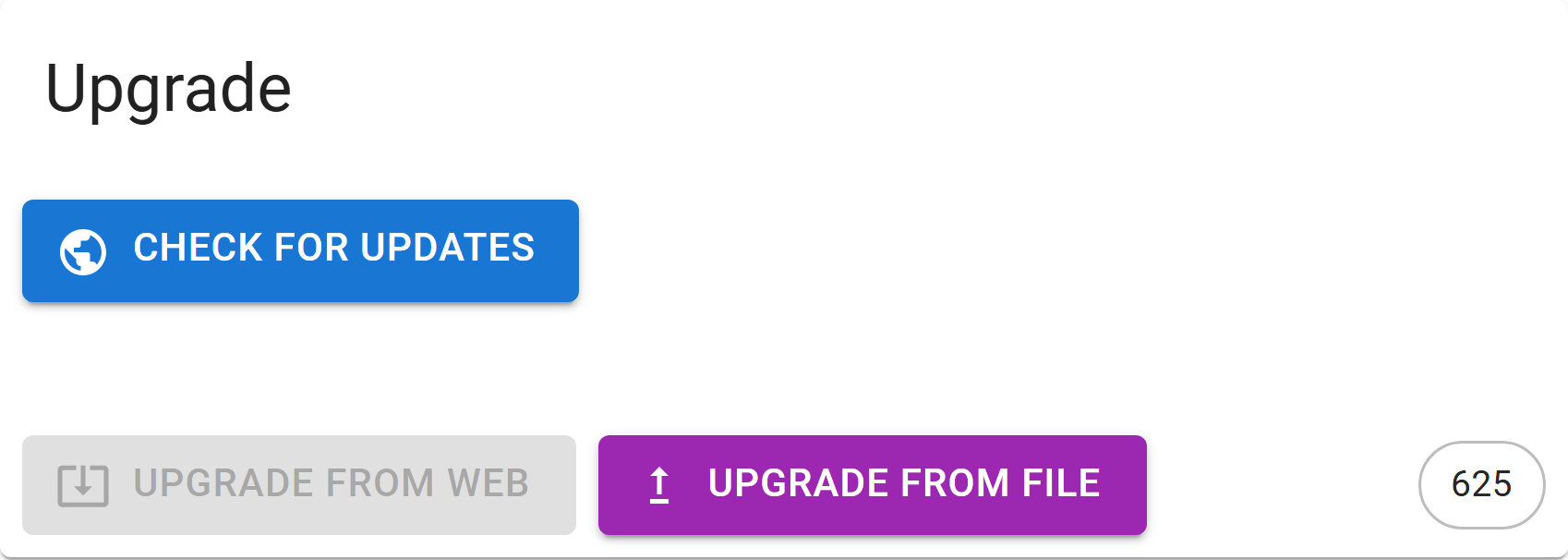
- Connect ZiggyMeter to your Wi-Fi network.
- Open the web interface and go to System → Upgrade.
- Select to look for newer firmware online.
- If an update is available, select .
- Or select to upload a file you downloaded yourself — this is the route to use while connected to the device's own Access Point.
- Wait for the transfer and the reboot.
- Confirm the new version under System → Software version.
TIP
When checking for updates, only your browser needs internet access. ZiggyMeter itself does not have to reach the internet — which is exactly what you want for a device on an isolated network.
Zigbee OTA
Zigbee transfers the file in many small chunks over a low-bandwidth radio link, so this takes a long time — plan for hours rather than minutes.
- Make sure ZiggyMeter is paired and has good link quality.
- Place it close to the coordinator or a strong router.
- In your coordinator software, find the device and start an OTA firmware update.
- Keep the device powered and in range until it completes.
- Verify the version afterwards.
If the transfer stalls, improving the radio link — closer placement, more mesh routers, less interference — is what usually fixes it.
Both Zigbee2MQTT and Home Assistant can be configured to find ZiggyMeter firmware automatically:
REST API
Use this to automate rollouts or manage devices remotely.
- Make sure the device is reachable over the network.
- Obtain a token, then POST the
.otafile to/api/v1/system/ota. - Wait for the device to verify and install it.
- Query the version again to confirm.
curl -X POST \
  https://<host>/api/v1/system/ota \
  -H "Authorization: Bearer <token>" \
  --data-binary "@XXXX-YYYY-00320-20250324T195250-ZiggyMeter-1.2.320-release.ota" \
  --limit-rate 128k
WARNING
Throttle the upload. The device cannot absorb the file at full speed and will report an error if you push it too fast. --limit-rate in the example above is not optional.
128k is a tested working value: a 2.4 MB image transfers in about 20 seconds. If your device reports an error, step down — a weaker Wi-Fi link or a busy device may need less.
If the upgrade is rejected
| Message | Cause |
|---|---|
| Old firmware version | The file is the same version or older. Downgrades are refused. |
| Not firmware upgrade / Invalid firmware file | The file is not a ZiggyMeter .ota, or is for a different product. |
| Corrupted upgrade data | The file failed signature or decryption checks — re-download it. |
| Flash write error | Storage problem. Retry; if it persists, contact support. |