Home Assistant native integration
The native integration uses the Home Assistant REST API to create sensors directly, so it can expose every datapoint your meter returns — not just the ones that map onto Zigbee clusters.
It requires Wi-Fi. It does not work over Zigbee; for that see Home Assistant via Zigbee.
1. Create a long-lived access token
ZiggyMeter authenticates against Home Assistant with a long-lived access token.
- Open your Home Assistant web interface.
- Open your Profile — click your username at the bottom left, or go to Settings → People and select your user.
- Go to the Security tab and scroll to Long-lived access tokens.
- Select Create token.
- Give it a name, for example
ZiggyMeter, and confirm. - Copy the token immediately.
WARNING
The token is shown once. Store it securely and treat it like a password. If you lose it, delete it in Home Assistant and create a new one.
2. Configure ZiggyMeter
In the ZiggyMeter web interface, open the Home Assistant page.
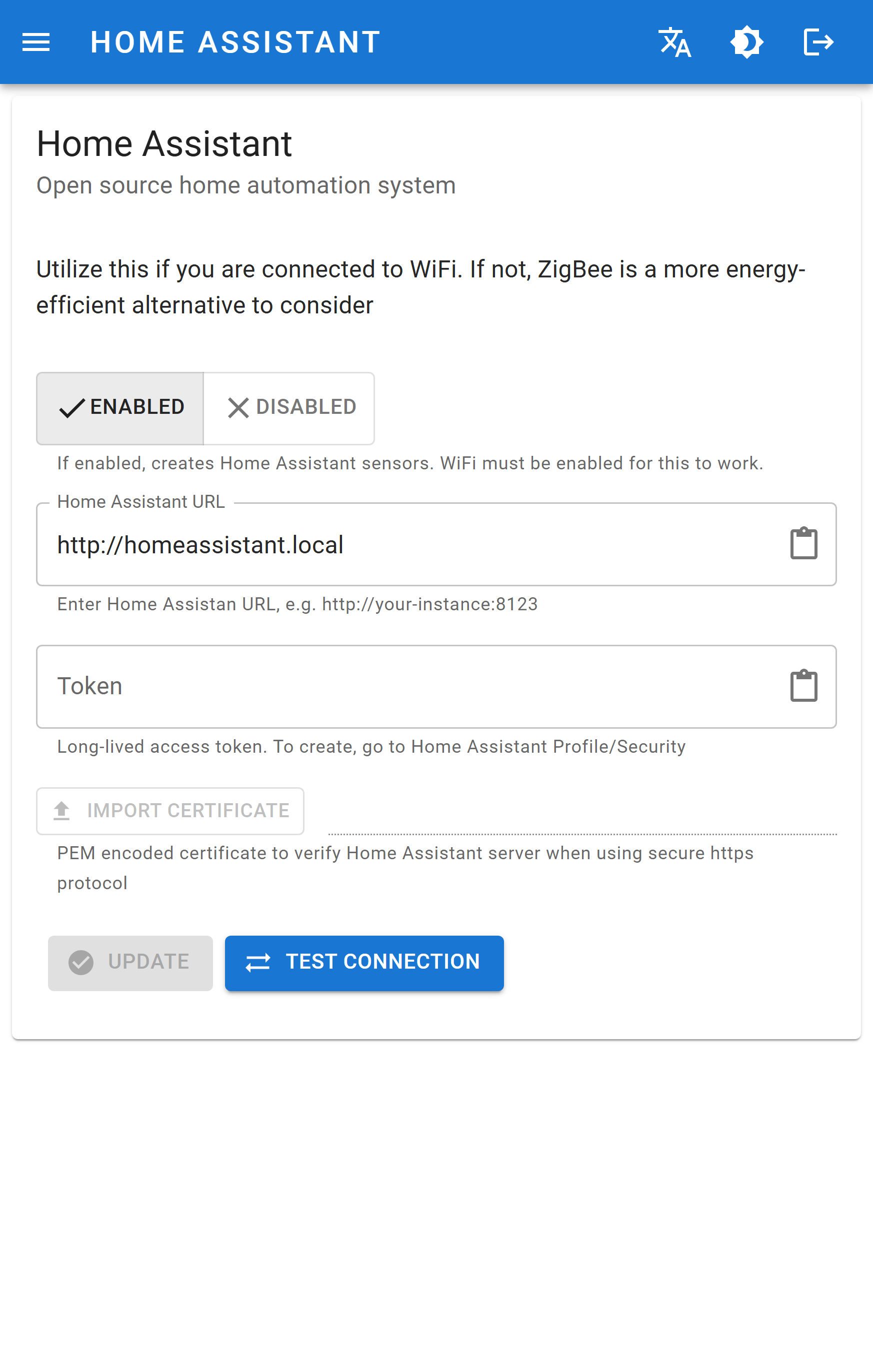
- Set Enable Home Assistant to ENABLED.
- Enter the Home Assistant URL, e.g.
http://192.168.1.10:8123. - Paste the long-lived access token.
- For an
httpsURL, import the server certificate as well.
DANGER
An https connection without a valid certificate will always fail. Import the certificate, or use your instance's local http URL.
3. Test the connection
Select . This verifies that the device can reach the instance and that the token is accepted.
If the test succeeds, select to save.
If it fails, see Troubleshooting → Data does not reach Home Assistant.
4. Verify the sensors
Trigger a meter reading — a single click of the device button, or Meter → Readings → .
ZiggyMeter publishes the data and Home Assistant creates the corresponding sensors automatically. Confirm they appear under Settings → Devices & services → Entities.
INFO
Sensors are created on the first successful publish, not when you save the settings. Until you trigger a reading there is nothing to see.
5. Add them to the Energy dashboard
To track cost and consumption over time, add the energy sensors to the Home Assistant Energy dashboard — see Energy dashboard.
Revoking access
Delete the token in Home Assistant under Long-lived access tokens. The device will stop being able to publish immediately.