Meter
Four tabs: Readings, Schedule, Configuration and DLMS/COSEM.
Readings
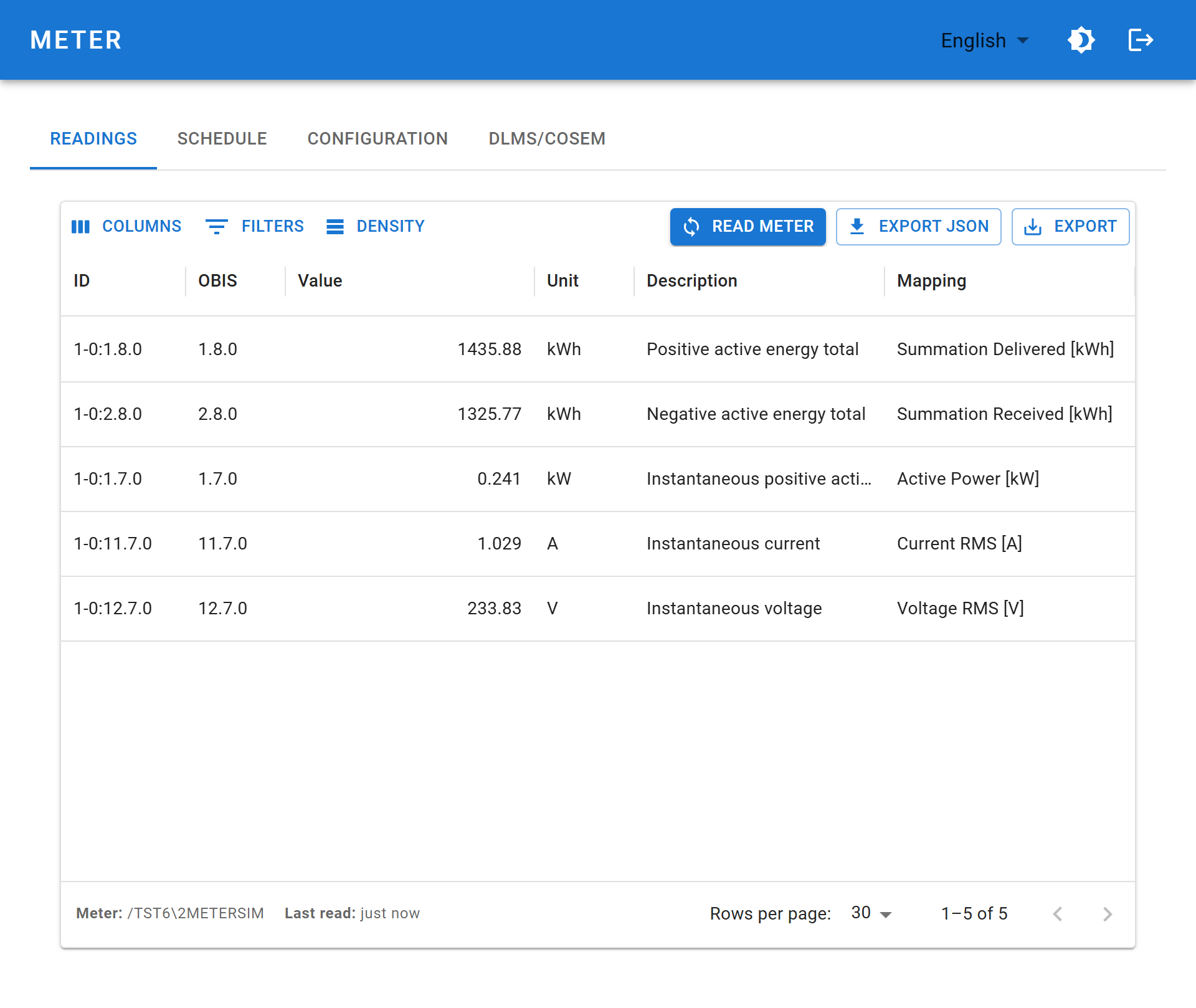
continuously while the device talks to the meter.
Communication
What the last session negotiated — the quickest way to see whether the optical link is working at all.
| Field | Meaning |
|---|---|
| Identification | The identity string the meter returned, e.g. /TST6\2METERSIM. Begins with a manufacturer code. |
| Protocol | IEC62056-21 or DLMS/COSEM |
| Mode | The IEC 62056-21 mode in use: A, B, C, D or E |
| Baud rate | The rate actually negotiated, which may be lower than your configured maximum |
Values
One row per datapoint the meter returned:
| Column | Meaning | Example |
|---|---|---|
| ID | Full OBIS code, including medium and channel | 1-0:1.8.0 |
| OBIS | Short OBIS code | 1.8.0 |
| Value | Parsed numeric value | 1843.88 |
| Unit | Unit of measurement | kWh |
| Description | Human-readable name, in the interface language | Positive active energy total |
| Mapping | Which Zigbee attribute this value is published as. Editable — see below. | Summation Delivered [kWh] |
The footer shows the meter's identification string and how long ago it was read. The set of rows depends entirely on your meter — see Meter readings.
INFO
The grid is empty on a device that has not read the meter yet: "Data will appear here once the device reads from the meter." Select to populate it.
Toolbar
| Control | Effect |
|---|---|
| COLUMNS | Show or hide individual columns |
| FILTERS | Filter rows |
| DENSITY | Row height: compact, standard or comfortable |
| Read the meter now | |
| Download the readout as JSON — the same shape the API returns | |
| Download as CSV, or print |
Changing the Zigbee mapping
Double-click a cell in the Mapping column to turn it into a drop-down, then pick the Zigbee attribute this OBIS code should be published as. The change is saved as soon as you choose — there is no separate save step.
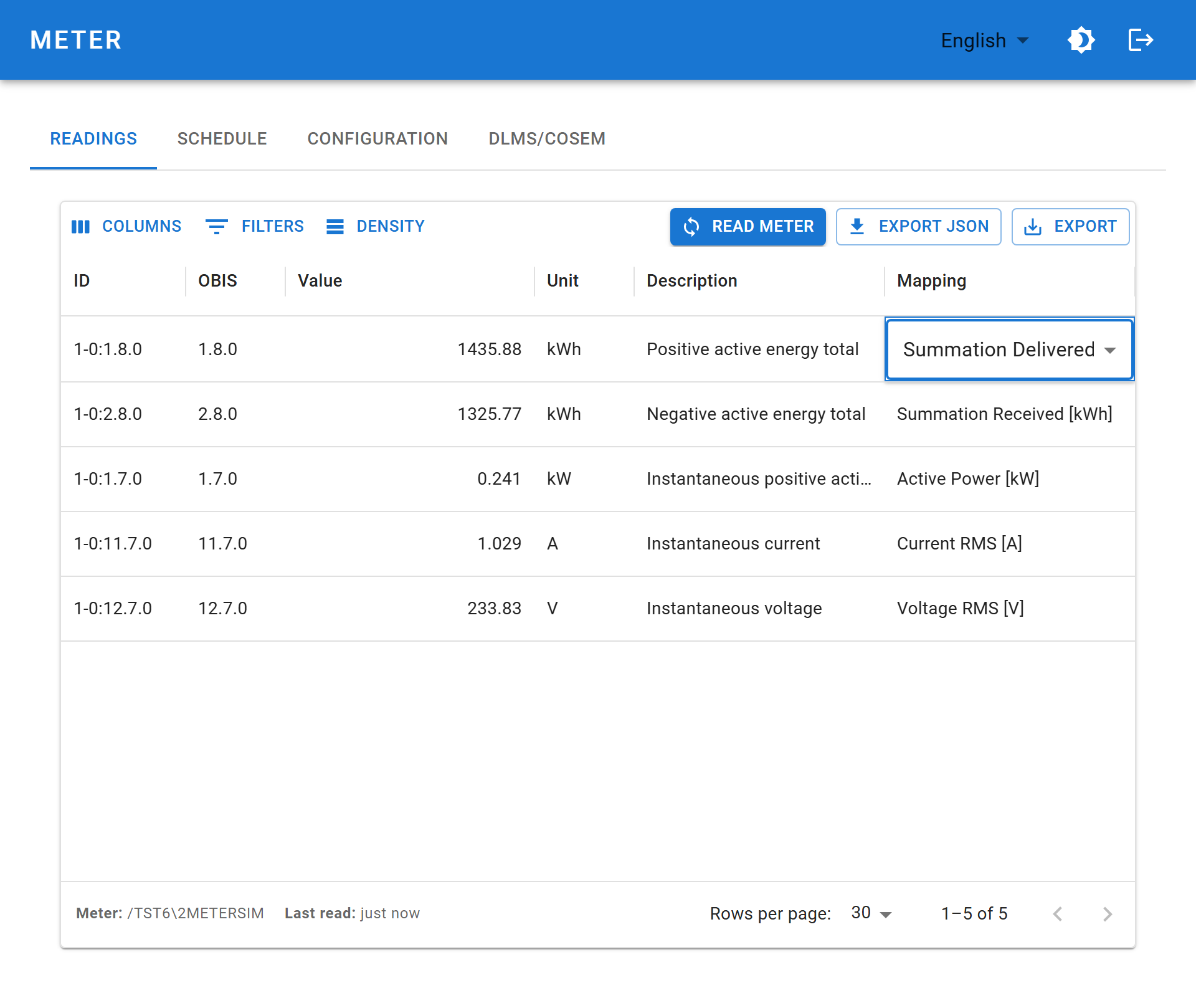
This is the normal way to change the mapping; it is also the only place the two are shown side by side, so you can see exactly which meter value ends up on which attribute.
| Drop-down entry | Publishes as |
|---|---|
| Unassigned | Nothing — the value is read but not sent over Zigbee |
| Summation Delivered [kWh] | Metering 0x0702 / 0x0000 |
| Summation Received [kWh] | Metering 0x0702 / 0x0001 |
| Active Power [kW] | Electrical Measurement 0x0B04 / 0x050B |
| Current RMS [A] | Electrical Measurement 0x0B04 / 0x0508 |
| Voltage RMS [V] | Electrical Measurement 0x0B04 / 0x0505 |
WARNING
Each target belongs to one OBIS code at a time. Assigning a target that another row already holds sets that other row back to Unassigned.
Full explanation, including the API alternative: Zigbee reference → mapping.
Schedule
How often the device reads by itself.
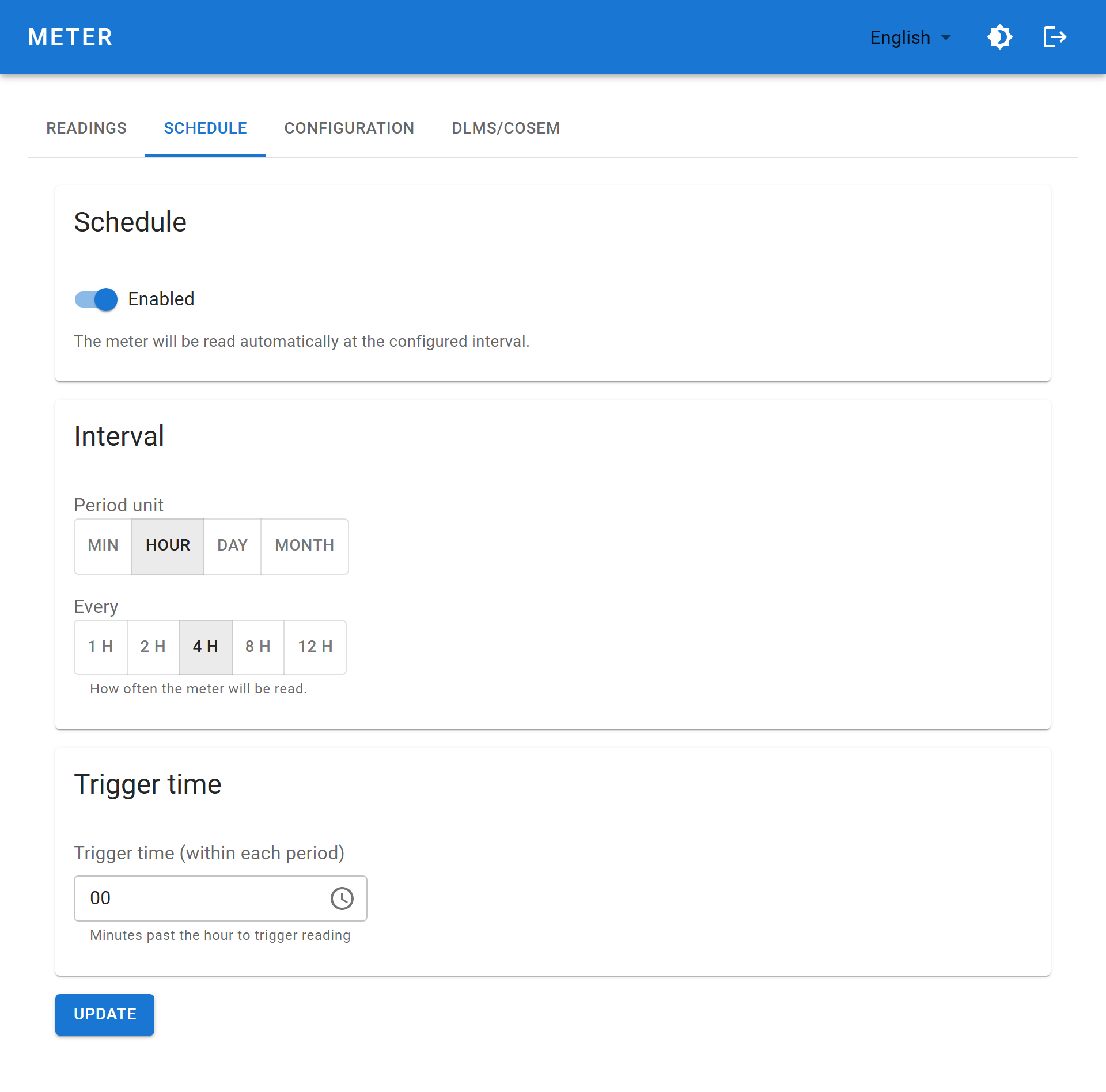
| Field | Options |
|---|---|
| Enabled | Turns automatic reading on or off |
| Period unit | Minutes, Hours, Days, Months |
| Period value | Minutes: 1, 5, 10, 15, 30 · Hours: 1, 2, 4, 8, 12 · Days: 1, 7, 14, 28 · Months: 1, 2, 3, 6 |
| Trigger time | Where in the period to read. Minute for hourly; hour and minute for daily; day, hour and minute for monthly. Not used for minute periods. |
WARNING
Reading frequency is the dominant factor in battery life. See Meter readings → Choosing a frequency.
Configuration
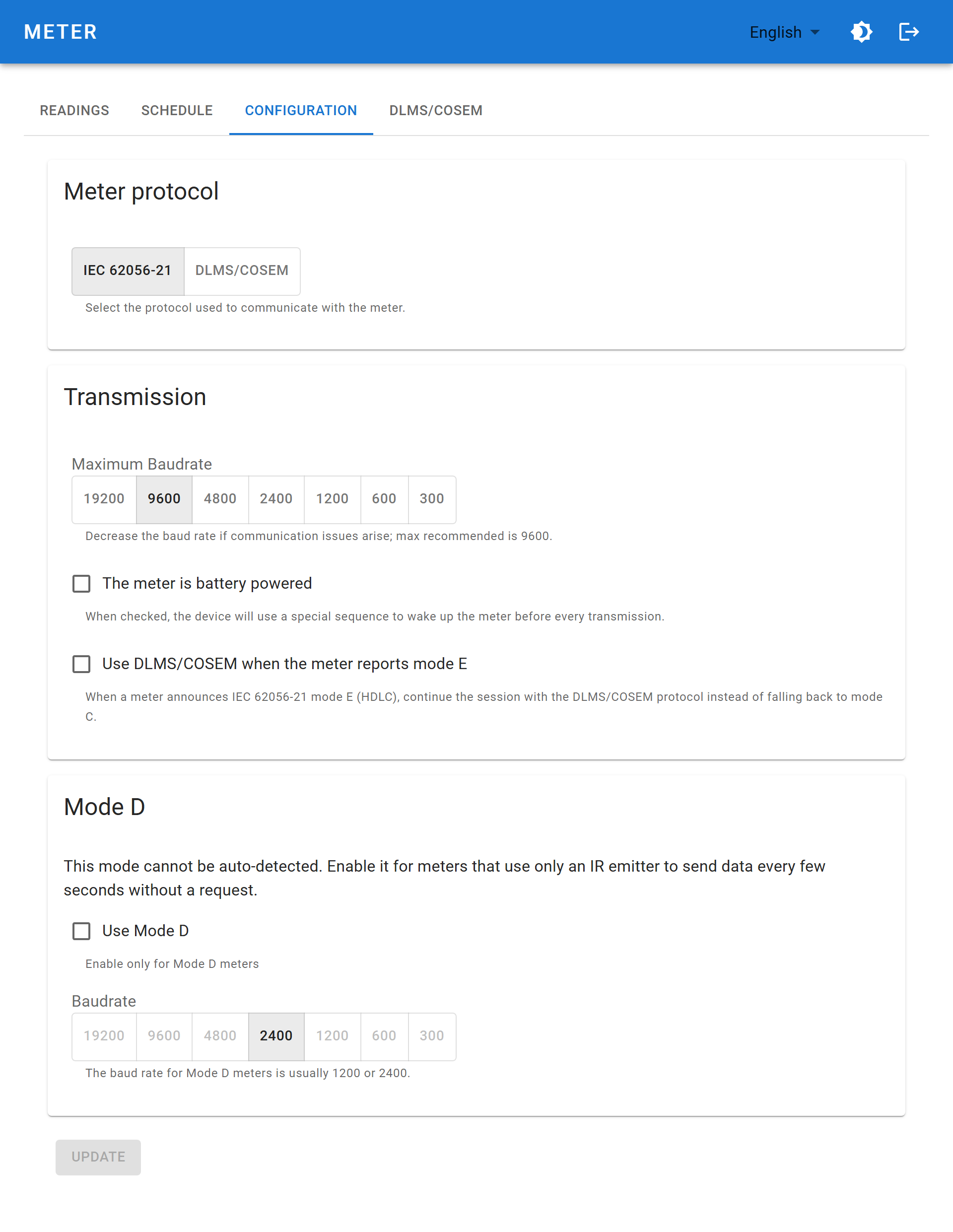
Meter protocol
Choose IEC 62056-21 or DLMS/COSEM. This determines which of the settings below and on the DLMS/COSEM tab actually apply. See Meter protocols.
Transmission
| Field | Meaning |
|---|---|
| Maximum baud rate | Ceiling for negotiation: 300–19200. The session runs at the lowest rate both sides accept. Lower it if readings are corrupted. |
| The meter is battery powered | Sends a wake-up sequence before every transmission. Needed for meters that power their optical port down between sessions. |
| Use DLMS/COSEM when the meter reports mode E | When the meter announces mode E (HDLC), continue in DLMS/COSEM instead of falling back to mode C. |
Mode D
| Field | Meaning |
|---|---|
| Use Mode D | The meter pushes readings unprompted; the device listens instead of asking. |
| Baud rate | The fixed rate the meter transmits at, commonly 2400. |
WARNING
Enable mode D only for a meter that genuinely uses it — with it on, the device never sends a request, and a normal mode C meter will stay silent.
DLMS/COSEM
Only relevant when the protocol is set to DLMS/COSEM, or when mode E hand-over is enabled.
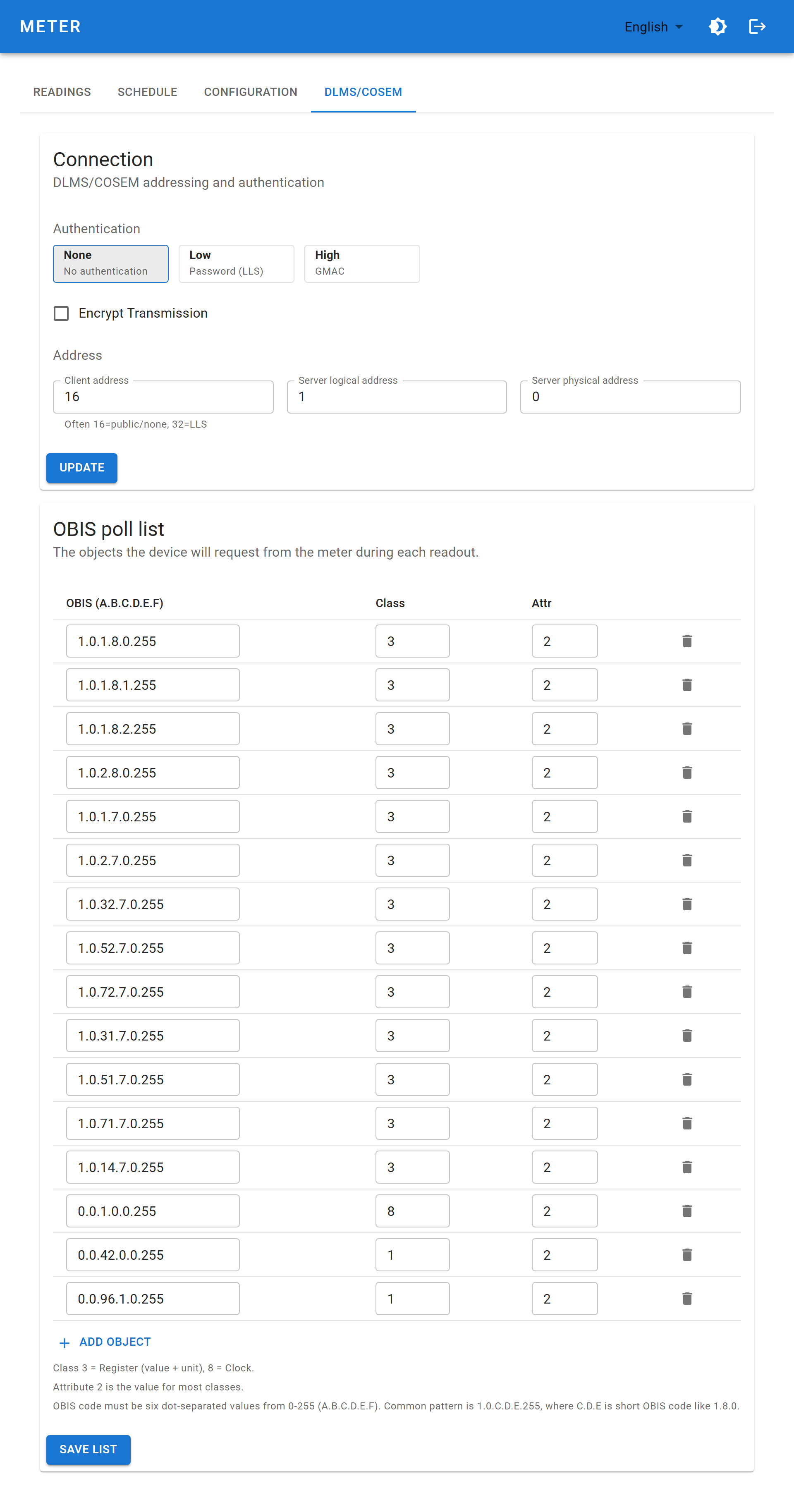
Connection
| Field | Meaning | Typical |
|---|---|---|
| Authentication | None (no authentication), Low (password, LLS) or High (GMAC) | Depends on the utility |
| LLS password | Password for Low authentication. Blank keeps the stored one. | — |
| Encrypt transmission | Use the ciphered application layer | Off |
| Block cipher key (GUEK) | 32 hex characters (16 bytes) | From the utility |
| Authentication key (AK) | 32 hex characters (16 bytes) | From the utility |
| Client address | Client role the device presents as | 16 = public/none, 32 = LLS |
| Server logical address | Logical device inside the meter | 1 |
| Server physical address | Physical meter address | 0 |
INFO
Stored passwords and keys are never displayed or returned by the API — the interface only shows whether a password is set. Leaving a field blank when saving keeps the existing value.
OBIS poll list
The objects the device requests on each readout. DLMS does not volunteer data; each object must be asked for by name.
| Column | Meaning |
|---|---|
| OBIS (A.B.C.D.E.F) | Six dot-separated values 0–255. Common pattern 1.0.C.D.E.255, where C.D.E is the short OBIS code such as 1.8.0. |
| Class | COSEM interface class: 1 = Data, 3 = Register (value + unit), 8 = Clock |
| Attr | Attribute index. 2 is the value for most classes. |
Use to add a row, the delete icon to remove one, and
to store it.Trim entries your meter rejects: a request for a non-existent object costs time on every readout, and on batteries that is energy. The shipped defaults and their meanings are listed under Meter protocols → OBIS poll list.
API equivalents
| Tab | Endpoints |
|---|---|
| Readings | /iec62056/read, /iec62056/last |
| Schedule | /iec62056/schedule |
| Configuration | /meter/protocol, /iec62056/config |
| DLMS/COSEM | /dlms/config, /dlms/obis |