WiFi
Three tabs: Status, New connection and Access Point.
For the procedure rather than the field list, see Wi-Fi setup.
Status
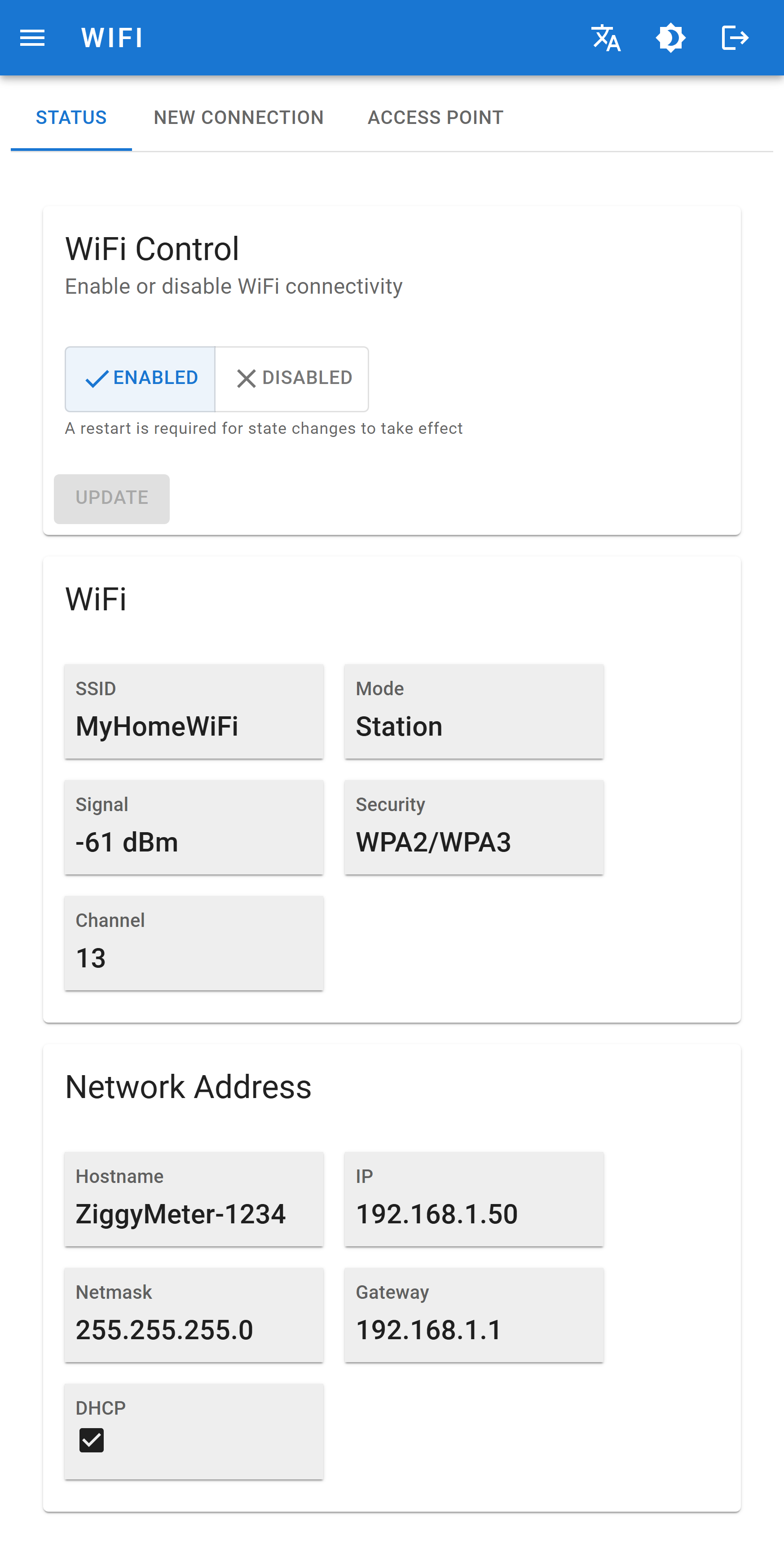
WiFi Control
Turns the Wi-Fi radio on or off entirely.
| Control | Meaning |
|---|---|
| ENABLED / DISABLED | Whether the Wi-Fi radio is active |
| Applies the choice — a restart is required for the change to take effect |
DANGER
Disabling Wi-Fi from the web interface ends the session that is showing it. Unless Zigbee is configured, the only way back is holding the button for 3 seconds at the device, or a factory reset.
Connection
| Field | Meaning |
|---|---|
| SSID | Name of the network the device is on — your network in client mode, its own hotspot name in Access Point mode |
| Mode | Client (station) or Access Point |
| Signal | RSSI in dBm. Closer to zero is better; worse than about −75 dBm is marginal |
| Security | Authentication in use, e.g. WPA2 or WPA3 |
| Channel | 2.4 GHz radio channel |
Network address
| Field | Meaning |
|---|---|
| Hostname | ZiggyMeter-XXXX, used for DHCP and local name resolution |
| IP | Current IPv4 address. Always 192.168.4.1 in Access Point mode |
| Netmask | Subnet mask |
| Gateway | Default gateway |
| DHCP | Whether the address came from a DHCP server or is statically configured |
New connection
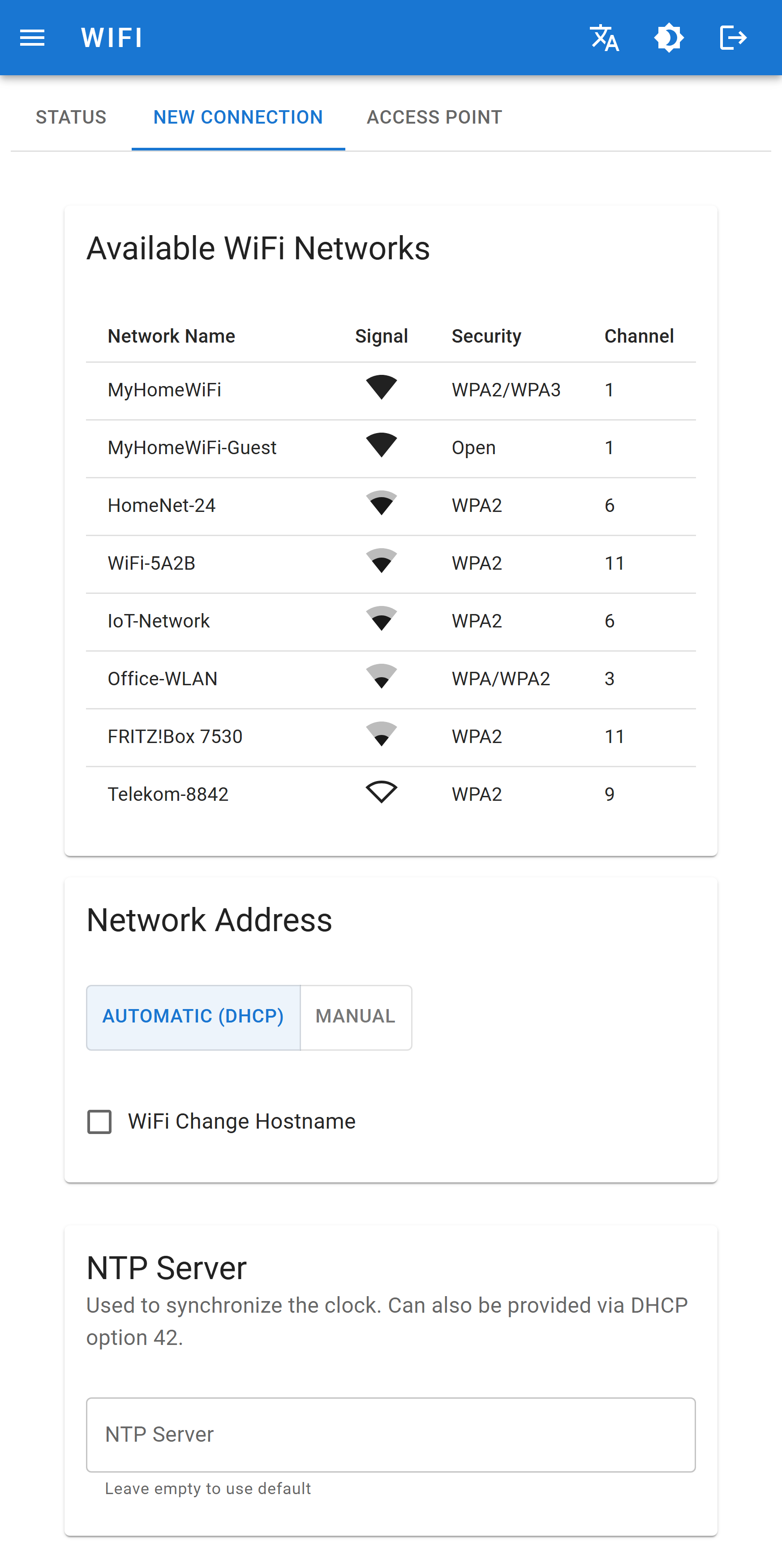
Nearby networks are discovered automatically and the list refreshes every few seconds. Each entry shows signal strength and security type.
Only 2.4 GHz networks appear — 5 GHz and 6 GHz are not supported by the hardware.
- Select the SSID you want to join.
- Enter the Wi-Fi password.
- Select Connect.
Instead of DHCP you can supply a fixed IP address, netmask and gateway. A DHCP reservation on the router is usually simpler.
WARNING
Joining a new network disconnects you. The device shuts down its Access Point and joins your network, so the browser loses the connection. Reconnect your phone or laptop to your usual Wi-Fi and open the device at its new address.
INFO
On your own network the device serves HTTPS with a self-signed certificate. The browser warning on first connection is expected — see Security.
Access Point
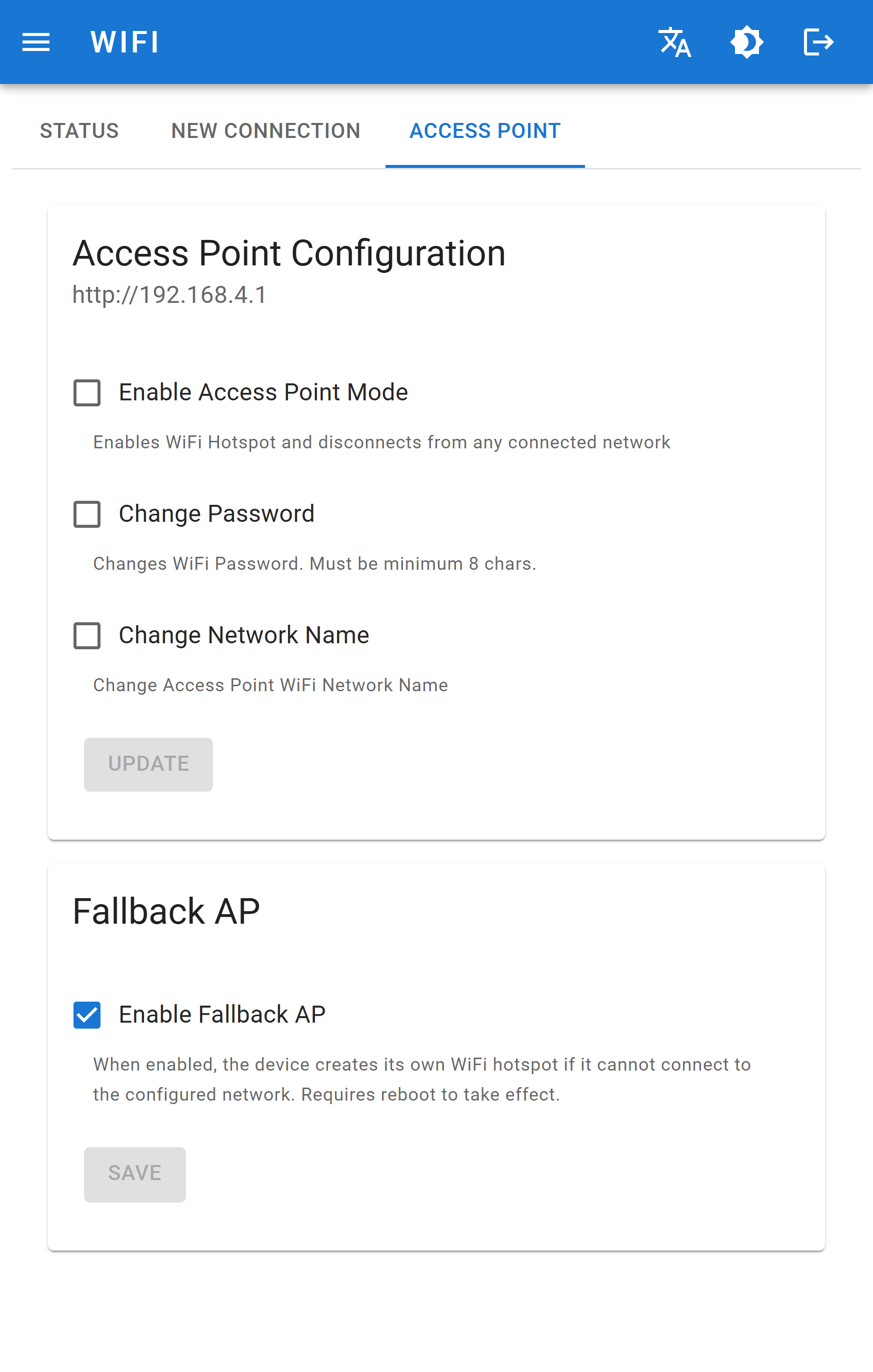
The device's own hotspot, used for setup and for locations with no network.
| Field | Meaning |
|---|---|
| Enable Access Point Mode | Keeps the hotspot running even when valid network credentials are stored. Enabling it disconnects the device from any network it has joined. |
| Change password | Set a custom hotspot password. Minimum 8 characters. |
| Change network name | Set a custom SSID for the hotspot. |
restart.
INFO
In Access Point mode the device always uses 192.168.4.1, and serves the interface over HTTP — port 443 is closed. See Security.
Fallback AP
Enable Fallback AP makes the device start its own hotspot when it cannot join the configured network — the router is off, the password changed, the SSID was renamed.
Without it, a device that can no longer reach its network is only recoverable with the button or a factory reset. With it, you can always get back in and correct the settings.
API equivalents
| Tab | Endpoints |
|---|---|
| Status | /network/status |
| New connection | /network/scan, /network/wifi |
| Access Point | /network/ap, /network/fallback-ap |