Zigbee2MQTT
Zigbee2MQTT is an open-source Zigbee bridge. As the name says, it converts Zigbee traffic into MQTT messages, which lets ZiggyMeter feed anything that speaks MQTT — Home Assistant, Node-RED, or your own software.
Requirements
- A Zigbee coordinator supported by Zigbee2MQTT
- Zigbee2MQTT running and connected to an MQTT broker
- ZiggyMeter powered on with Zigbee enabled
Pair the device
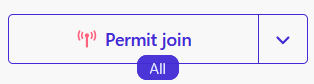
Open the Zigbee2MQTT frontend and enable Permit join (bottom of the left menu).
Put ZiggyMeter into joining mode:
- Button — click 3 times, or 4 times if the device is asleep.
- Web interface — Zigbee → .
Wait for the device to appear in the Devices list.

Optionally give it a friendly name. That name becomes part of the MQTT topic, so choose it before you write automations against it.
WARNING
"Not supported" is not an error. It means ZiggyMeter is not in the Zigbee2MQTT device database, not that it fails to work. All clusters are standard and the data flows normally. You can safely ignore the message.
Device details
Selecting the device shows its details, including the MQTT topic.
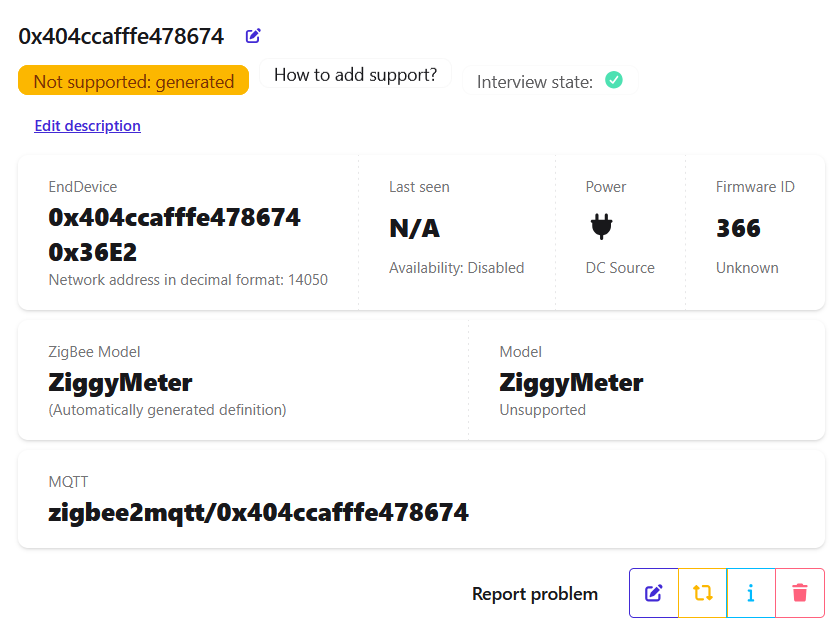
Useful sub-tabs:
| Tab | What it gives you |
|---|---|
| Exposes | Measurements — power, energy, temperature, battery |
| Clusters | The raw Zigbee clusters the device exposes |
| Dev console | Read and write attributes directly — the tool to reach for when a value looks wrong |
Receiving data
Zigbee2MQTT publishes measurements as MQTT messages.
- Default topic pattern:
zigbee2mqtt/<friendly_name> - The base topic (
zigbee2mqtt) is configurable in Zigbee2MQTT settings
Subscribe with any MQTT client:
mosquitto_sub -t 'zigbee2mqtt/<friendly_name>' -vA message looks like this:
zigbee2mqtt/0x404ccafffe478674 {"current_2":null,"energy_2":129496,"linkquality":204,"power_2":null,"produced_energy_2":67296,"state_1":"OFF","state_2":"OFF","temperature":36.59,"voltage_2":null}The _1 and _2 suffixes are the Zigbee endpoints — _1 is the device, _2 is the meter. See Zigbee reference.
INFO
A null field means the meter did not provide that value, not that the Zigbee link failed. Which fields are populated depends entirely on your meter.
Firmware updates
Zigbee2MQTT can upgrade ZiggyMeter automatically. Follow the Zigbee2MQTT guide for OTA updates, and use this remote OTA index URL:
https://fw.ziggymeter.com/z2m_index.jsonWARNING
Zigbee OTA is slow. Keep the device powered and in range for the whole transfer — expect hours, not minutes. See Firmware upgrade → Zigbee OTA.
Troubleshooting
| Symptom | Check |
|---|---|
| Device does not join | Permit join is open; run a Zigbee reset (3 clicks, 4 if asleep); move the device closer to the coordinator |
| No MQTT messages | Zigbee2MQTT is connected to the broker; you are subscribed to the right base topic and friendly name |
Fields are null | The meter does not report those values — check the readout in the ZiggyMeter web interface |
| Values never change | Nothing is triggering readouts. Check the schedule |