
Upgrade
The software in device can be updated.
Updates typically brings:
- new features
- bug fixes
- security issue fixes
WARNING
Downgrading to an older firmware version is not supported for security reasons. Allowing downgrades would make it possible to install a version with known vulnerabilities (a “rollback attack”), bypassing security fixes that were added in newer releases. To protect the device and your network, ZiggyMeter only accepts firmware upgrades to newer versions.
How to check software version
ZiggyMeter Web interface
Go to System→Software Version
Zigbee
Check File version. Exact naming depends on your Zigbee software. Typically you will see build number only, .e.g. for version 1.0.320, Zigbee file version is 320.
API
Use /api/v1/system/version endpoint
Versioning schema
The firmware version consist 3 parts divided by the dot:
- Major: increments for big changes that possibly break compatibility, for example, changed behavior, removed features, or incompatible configuration changes.
- Minor: increments for backward-compatible improvements (new features and enhancements that do not require changes on your side).
- Build number: increments for individual firmware releases (bug fixes, small changes, and internal revisions). It uniquely identifies the exact firmware build. It is also version reported to Zigbee coordinator.
For example: 1.2.320, where Major version: 1, Minor version: 2, Build number: 320.
Firmware upgrade files
Firmware upgrade files follow a fixed naming convention. This makes it easy to identify what device a file belongs to and what exact version it contains.
Example filename:
XXXX-YYYY-00320-20250324T195250-ZiggyMeter-1.2.320.ota
Naming convention
XXXX— manufacturer codeYYYY— product code00320— build number and Zigbee version20250324T195250— build timestamp in the formatYYYYMMDDThhmmssZiggyMeter— product name1.2.320— firmware version (see Versioning schema above).ota— upgrade file extension
File integrity and security
Upgrade files are encrypted and digitally signed. If the file is modified (even by a single byte), signature validation fails and the device will reject the upgrade.
Firmware upgrade files location
Upgrade files are available on: https://fw.ziggymeter.com.
Upgrade procedure
ZiggyMeter can be upgraded in multiple ways. The best option depends on how your device is connected:
- Web interface (Wi‑Fi) — usually the fastest and the recommended method.
- Zigbee OTA — works well for battery/mesh setups, but is very slow compared to Wi‑Fi.
- API — useful for automation or remote maintenance when you manage devices programmatically.
INFO
ZiggyMeter is designed so a failed upgrade cannot permanently brick the device; if the process is disrupted (for example, by power loss or a dropped connection), restore power/connectivity and retry the upgrade using the web interface, Zigbee OTA, or the API.
Before you upgrade
- Ensure the device has stable power during the whole process (USB‑C recommended).
- Verify you are upgrading to a newer version (downgrades are rejected).
WARNING
After a successful upgrade, the device reboots. Connectivity will be temporarily unavailable during the restart.
Transferring the upgrade file does not interrupt normal operation.
Upgrade using the web interface (Wi‑Fi)
TIP
This is the fastest, easiest and recommended method.
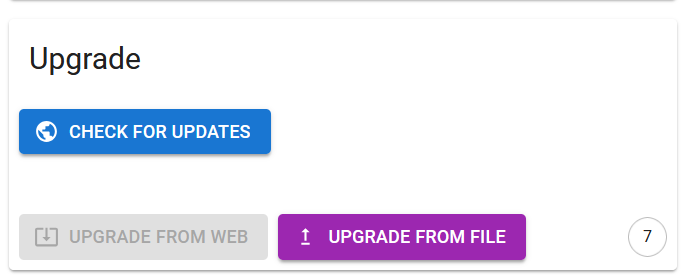
- Connect ZiggyMeter to your Wi‑Fi network.
- Open the ZiggyMeter web interface in your browser.
- Navigate to System → Upgrade.
- Click to scan for the latest firmware version online.
- If an update is available, click to begin the installation.
- Alternatively, you can manually upload a downloaded file by clicking (useful when using ZiggyMeter Access Point).
- Wait for the device to upload.
- After the device reboots, confirm the updated version in the System information page.
Upgrade using Zigbee (OTA)
Zigbee upgrades transfer the file in many small chunks over a low-bandwidth radio link. This is why it can take a long time.
- Make sure ZiggyMeter is paired to your Zigbee network and has a good link quality.
- Place the device close to the coordinator or a strong router to improve reliability.
- In your Zigbee coordinator software, locate the ZiggyMeter device and start an OTA firmware update.
- Keep the device powered and within range until the update completes.
- Verify the firmware version after the update.
If the process stalls, improving radio link quality (closer placement, more mesh routers, less interference) typically helps.
INFO
Check the integration guides for detailed instructions on configuring your Zigbee environment for automatic upgrades.
Upgrade using the API
Use the API method if you want to automate upgrades (for example, CI/CD for firmware rollout) or manage devices remotely.
- Ensure the device is reachable over the network.
- Call the firmware upgrade endpoint described in the API documentation and upload the
.otafile. - Wait for the device to verify and install the firmware.
- Query the device version again to confirm the upgrade.
See POST /api/v1/system/ota for the endpoint and request formats.