
Home Assistant Native Integration
This integration uses the Home Assistant API to create sensors, so it can expose all meter datapoints. It requires a Wi-Fi connection and does not work over Zigbee.
For Zigbee connectivity see Home Assistant Zigbee Integration.
Create Home Assistant token
ZiggyMeter needs a Home Assistant long-lived access token to authenticate against the Home Assistant REST API.
- Open your Home Assistant web UI.
- Open your Profile:
- Click your username in the bottom-left, or
- Go to Settings ? People and select your user.
- Scroll to Long-lived access tokens in Security section.
- Click Create token.
- Enter a name (for example:
ZiggyMeter) and confirm. - Copy the token immediately.
WARNING
The token is shown only once. Store it securely and treat it like a password.
Use the token in ZiggyMeter
In the ZiggyMeter web interface, open the Home Assistant integration settings and paste the token when prompted. If you later need to revoke access, delete the token in Home Assistant under Long-lived access tokens.
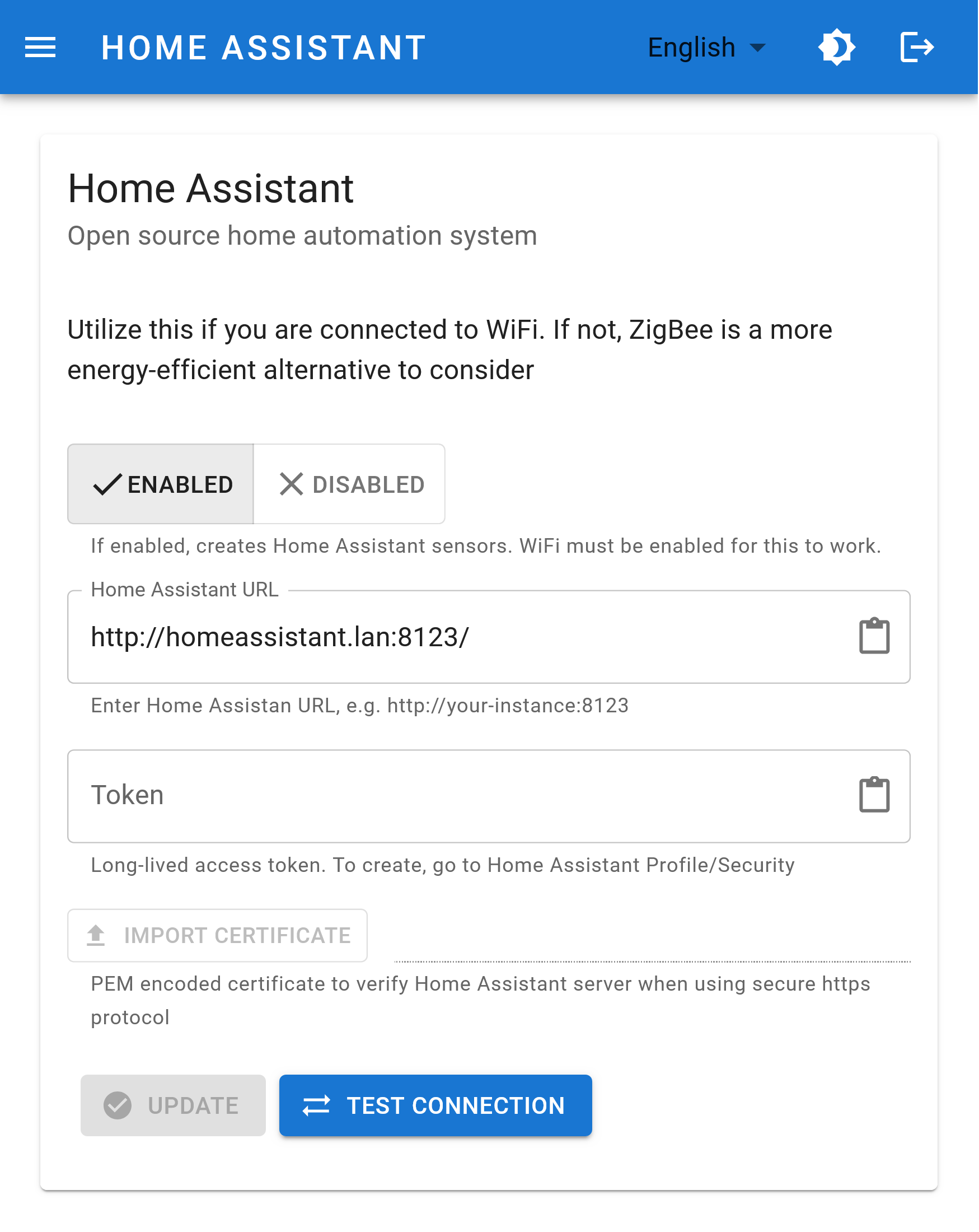
Set URL
Enter the Home Assistant URL. If you use https, also provide the certificate so ZiggyMeter can verify the Home Assistant server.
DANGER
Without a valid certificate, an https connection will always fail.
Verify connection
Click to verify that ZiggyMeter can connect to Home Assistant.
If the test succeeds, click to save the settings.
Verify sensors
Trigger a meter reading. ZiggyMeter will publish the data to Home Assistant, which will automatically create the corresponding sensors. Confirm that the new sensors appear under Entities in Home Assistant.
Your sensors are now available in Home Assistant.
To track energy usage, add them to the Energy dashboard as described in the Energy guide.