
Home Assistant Zigbee Integration
Automatic Upgrades
You can configure Home Assistant to automatically check for new firmware and upgrade device. It is assumed that Home Assistant is using default Zigbee integration ZHA with zigpy backend library.
Modify Configuration
Edit Home Assitant configuration.yaml file and and ota section to zigpy_config configuration options.
zha:
    database_path: /config/zigbee.db
    enable_quirks: true
    custom_quirks_path: /config/zha_quirks/

    zigpy_config:
      ota:
        extra_providers:
          - type: zigpy_remote
            url: https://fw.ziggymeter.com/zigpy_index.json
Restart Home Assistant to apply changes.
Initial state
- On the device page in Home Assistant, check Firmware Sensor
- Initially Firmware Sensor shows
Up-to-date. - At this point, OTA firmware files have not been checked on the server
- Clicking the sensor displays the installed version and the "Latest version" (from the "downloaded version" attribute).
- Options to upgrade or skip are disabled.
Upgrade process
Home Assistant periodically checks for new firmware versions. When a new version is available, the Update and Skip options become visible.
Choose Update to start the upgrade. The firmware is transferred while the device remains operational; after the transfer completes, the device will reboot. Confirm the new version in the Firmware sensor.
Force manual firmware check
You can manually trigger Home Assistant to check for new firmware.
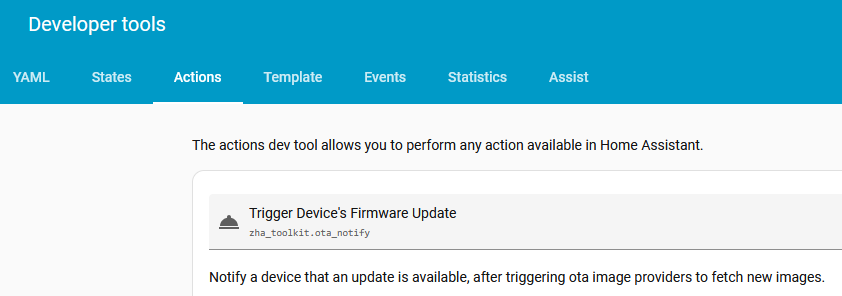
Use the zha_toolkit.ota_notify action from plugin Zigbee Home Assistant Toolkit. Open Developer tools → Actions, choose Trigger Device's Firmware Update, select the ZiggyMeter Firmware sensor as the Device Reference, then click Perform action.
Without extra plugins, send the Zigbee image_notify command in the OTA cluster. Open the ZiggyMeter device page, select Manage Zigbee Device, choose the OTA Cluster, then in Commands select image_notify (id: 0x0000) and provide the required parameters.